We’ve all been there: it’s nearly 1 AM, and you promise yourself “just one more test” generation. That was me last night, but the results changed everything I thought I knew about Seedance 2.0 Camera Movement. The surprise wasn’t just getting high-quality pixels—any model can do “pretty” now—it was discovering that specific Prompt Syntax for Pan, Dolly, and Tracking instantly flips the vibe from “AI slideshow” to real cinema.
After hours of tweaking, I realized that thinking like a Director of Photography is the ultimate cheat code. In this post, I’m sharing the exact camera language that turns static generations into directed storytelling, so you can stop fighting with the AI and start directing it.
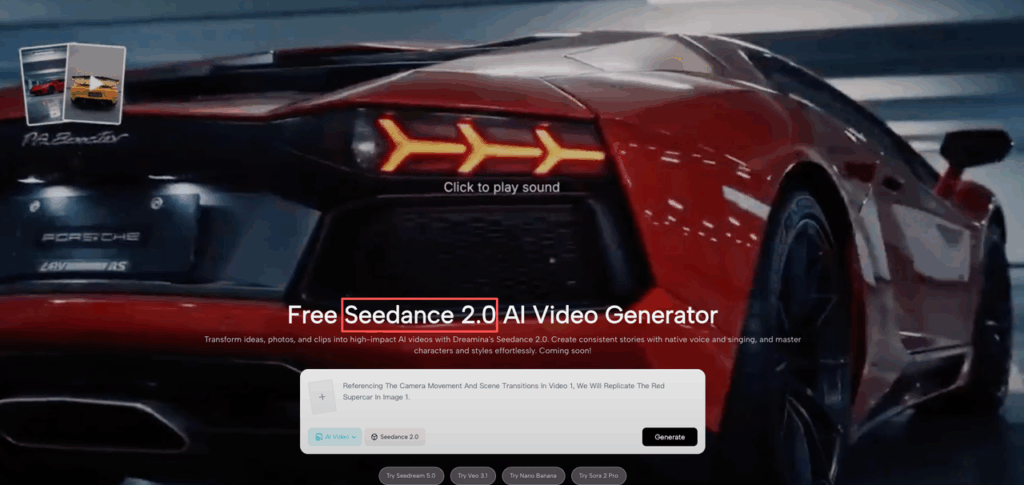
Why camera language is the highest-leverage prompt skill
If we only get to “level up” one thing in prompting, it’s camera language.
Because it’s the closest thing to a universal control knob:
- One move = instant mood. A slow dolly-in feels intimate. A handheld tracking shot feels urgent.
- It saves time. Instead of rewriting the whole scene, we swap one line: “slow push-in” → “handheld tracking.”
- It makes outputs more usable for clients. Designers don’t just need pretty frames: we need intentional motion that feels directed.
Also, camera moves help Seedance 2.0 “understand” what to keep stable.
When we say “static tripod shot,” the model tends to stop inventing micro-moves. When we say “handheld,” it can add shake on purpose instead of accidentally.
Now let’s get practical on how to use Seedance 2.0.
6 camera moves and exact prompt syntax
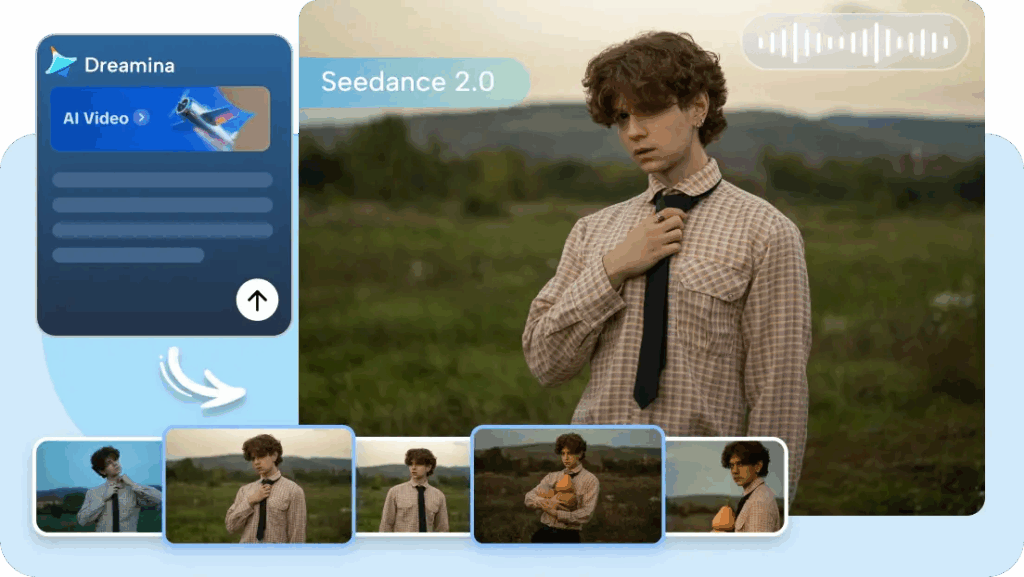
Here’s how we’ve been writing camera movement prompts so Seedance 2.0 actually listens.
Our format (copy this):
- Camera: [move] + [speed] + [subject lock]
- Lens (optional): focal length / feel
- Stability: tripod / handheld / gimbal
And yes, we literally label it with “Camera:” sometimes. It helps us stay consistent.
Pan / Tilt / Dolly / Tracking / Handheld / Zoom
1) Pan
Use this when the scene is wider than the subject.
- Prompt phrase: “slow pan left to right”
- Add a target if needed: “pan reveals the product on the table”
Example:
- Camera:slow pan left to right across a modern kitchen counter, reveal a matte black espresso machine, tripod stable
2) Tilt
Great for architecture/product hero reveals.
- Prompt phrase: “tilt up” or “tilt down”
- Extra control: “start on…” and “end on…”
Example:
- Camera:tilt up from the building entrance to the glass facade, tripod shot, slow
3) Dolly (push in / pull back)
This is our most-used “make it cinematic” move.
- Prompt phrase: “slow dolly in” / “dolly out”
- If you want intimacy: “gentle push-in”
Example:
- Camera:slow dolly in toward the smartwatch on a stand, shallow depth of field, smooth gimbal
4) Tracking
Use tracking when the subject moves and we want the camera to follow.
- Prompt phrase: “tracking shot following…”
- Add direction: “from behind”, “side profile”
Example:
- Camera:tracking shot following a runner from behind through a rainy street, smooth gimbal, medium shot
5) Handheld
Handheld is spice. Too much and it looks like an accident.
- Prompt phrase: “handheld documentary style”
- Control the chaos: “subtle handheld sway” or “mild camera shake”
Example:
- Camera:handheld documentary style, subtle handheld sway, close-up on hands sketching a logo on paper
6) Zoom
Zoom is the easiest to overdo. We mostly use it for ads or intentional “retro.”
- Prompt phrase: “slow zoom in” / “quick zoom”
- If the model keeps zooming randomly, we’ll explicitly say: “no zoom” (more on that later).
Example:
- Camera:slow zoom in on the perfume bottle label, studio lighting, tripod stable
Tiny rule we learned the hard way: don’t stack three moves at once. “Pan + zoom + dolly + handheld” usually turns into soup. Pick one primary move, one optional flavor.
Pacing + cut language (slow push vs snap cut)
Camera movement is half the story. The other half is editing language.
Seedance 2.0 responds better when we describe pacing like we’d talk to an editor.
Here are phrases we keep reusing:
- “slow push-in” = calm, premium, intimate
- “fast push-in” = urgency, hype, attention grab
- “snap cut to…” = sharp transition, ad energy
- “match cut to…” = fancy continuity (same shape, new scene)
- “hard cut” = simple, direct
- “lingering shot” = holds longer, less frantic
Two copy-paste patterns:
- Premium product pacing
- Pacing:lingering shot, slow push-in, minimal movement, 24fps cinematic
- Cut:hard cut to macro detail shot
- Social ad pacing
- Pacing:fast pacing, quick beats
- Cut:snap cut every 1–2 seconds, punchy transitions
If you’re seeing chaotic motion, it’s often because we asked for “fast” everything. Fast camera + fast cuts + busy scene = wobble city.
Our fix: keep the scene simple, then let the camera move do the work.
Example prompts by genre (ad / cinematic / vlog)
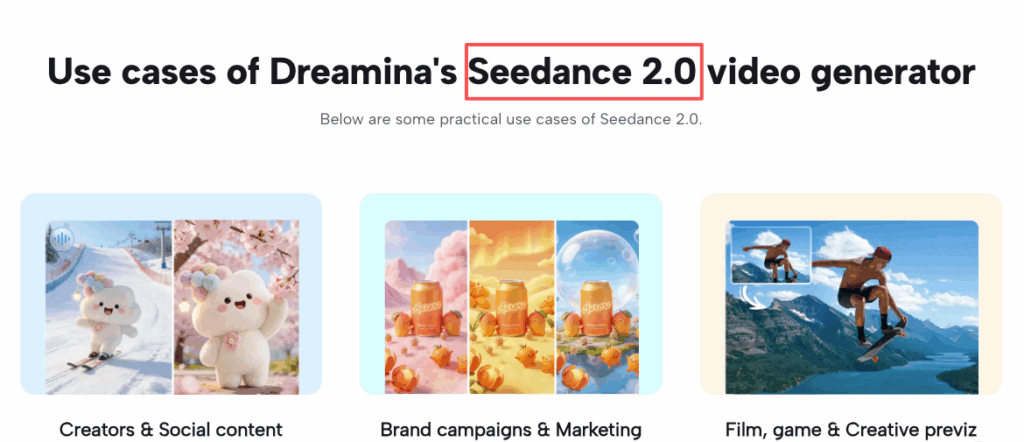
These are real prompt templates we’ve been riffing on. Swap the subject, keep the camera language.
1) Ad (clean, punchy)
- Model: Seedance 2.0
- Prompt:Studio tabletop ad for a matte black wireless earbud case, clean white sweep background, softbox lighting, crisp reflections. Camera: slow dolly in toward the product, tripod stable. Cut: snap cut to macro close-up of the hinge opening, then snap cut to logo detail. Premium commercial look, sharp focus, no handheld, no motion blur.
Why it works: one main move (dolly), plus explicit cut instructions.
2) Cinematic (moody, intentional)
- Model: Seedance 2.0
- Prompt:Cinematic interior, modern brutalist hallway at dusk, volumetric light through tall windows, dust in the air. Camera: slow tracking shot moving forward down the hallway, smooth gimbal, subtle parallax. Pacing: lingering, 24fps film look, shallow depth of field, gentle motion. No zoom.
Why it works: “parallax” + “gimbal” nudges it toward stable movement.
3) Vlog / creator style (human, imperfect on purpose)
- Model: Seedance 2.0
- Prompt:Lifestyle vlog shot in a small coffee shop, natural window light, cozy background bokeh. Camera: handheld documentary style, subtle handheld sway, medium close-up of a designer talking to camera, friendly casual energy. Pacing: natural, minimal cuts. No warping, keep face stable, no sudden zoom.
Why it works: we ask for handheld, but we cap it (“subtle sway”) so it doesn’t become an earthquake.
If you want more prompt structure ideas, Dreamina has prompt examples worth skimming (Seedance 2.0 prompt resource). We don’t copy them 1:1, but they help you see the “grammar” they expect.
Troubleshooting: jitter, warping, unwanted zoom
We’ve spent a full week stress-testing motion prompts across product shots, interiors, and people. These three issues show up constantly.
1) Jitter (micro-shakes, unstable motion)
What it looks like: the camera “buzzes,” especially on straight lines (tables, buildings).
Fixes we use:
- Add stability language: “tripod stable” or “smooth gimbal”
- Slow it down: “slow”, “gentle”, “steady”
- Reduce scene complexity: fewer moving objects in the frame
Prompt patch:
- Camera:slow dolly in, smooth gimbal, steady motion, tripod-like stability
2) Warping (bendy walls, melting edges)
What it looks like: architectural lines curve, product edges wobble.
Fixes we use:
- Ask for composition constraints: “straight vertical lines, architectural photography”
- Use a lens hint: “35mm lens” (often feels less distorted than ultra-wide vibes)
- Avoid aggressive handheld + fast moves on interiors
Prompt patch:
- architectural photography, straight vertical lines, minimal distortion, Camera: slow pan, tripod stable
3) Unwanted zoom (the model keeps creeping in/out)
What it looks like: even when we asked for a pan, it sneaks a zoom.
Fixes we use:
- Explicit negative instruction: “no zoom”
- Replace zoom language with distance language: “maintain subject size in frame”
- Choose one move only (zoom sneaks in when prompts get crowded)
Prompt patch:
- Camera:slow pan left to right, maintain subject size in frame, no zoom, tripod stable
Eliminating jitter and warping takes experimentation, not just luck. Test these stability constraints and camera prompts in PromeAI to find the perfect settings for your specific creative vision.
Quick trust note (privacy + usage)
If we’re uploading client work (product CAD screenshots, unreleased branding, faces), we treat these tools like any cloud app:
- Don’t upload anything you can’t risk leaking.
- Strip metadata where possible.
- Use stand-in assets for testing.
Check the specific platform’s current terms and privacy docs before using it for sensitive material (Dreamina/CapCut, PromeAI, etc.). For image-to-video adjacent workflows, tools like PromeAI can also be part of a pipeline, but we still keep the same rule: client-sensitive in, client-sensitive out, only when we’ve cleared it.
Cheat sheet — camera move → prompt phrase lookup table
Save this table somewhere. We use it like a little spellbook.
| Camera goal | Prompt phrase to paste | Extra control (optional) |
| Stable wide reveal | “slow pan left to right, tripod stable” | “reveal [object] at end of pan” |
| Vertical hero reveal | “tilt up, tripod shot, slow” | “start on [detail], end on [top]” |
| Premium intimacy | “slow dolly in, smooth gimbal” | “shallow depth of field” |
| Follow a moving subject | “tracking shot following [subject], smooth gimbal” | “from behind / side profile” |
| Human, casual energy | “handheld documentary style, subtle handheld sway” | “natural light, minimal cuts” |
| Intentional zoom moment | “slow zoom in, tripod stable” | “retro commercial zoom” |
| Stop random zoom | “no zoom, maintain subject size in frame” | “one camera move only” |
| Reduce jitter | “steady motion, tripod stable, slow” | “minimal movement” |
| Reduce warping | “architectural photography, straight vertical lines” | “35mm lens, minimal distortion” |
If we had to pick one default starter line for Seedance 2.0 camera movement, it’s this:
- Camera:slow dolly in, smooth gimbal, steady motion, no zoom
Alright, your turn.
What’s the thing that keeps breaking your clips right now: jitter, warping, or the random zoom gremlin? We’ll reply with a prompt patch that matches your exact scene.
Frequently Asked Questions (FAQ) about Seedance 2.0 Camera Movement
What is Seedance 2.0 camera movement, and why does it make clips feel more “real”?
Seedance 2.0 camera movement is the use of explicit camera language (pan, tilt, dolly, tracking, handheld, zoom) in your prompt. Clear moves, speed, and stability cues quickly shift results from “AI slideshow” to intentional, directed motion—without changing your subject, lighting, or scene.
How do I write a Seedance 2.0 camera movement prompt so the model actually listens?
Use a consistent structure: Camera: [move] + [speed] + [subject lock], plus Stability (tripod/handheld/gimbal) and an optional Lens hint. For example: “Camera: slow dolly in toward the product, smooth gimbal, steady motion, no zoom.” Avoid stacking multiple moves at once.
Which camera moves work best in Seedance 2.0 for product ads or design visuals?
For clean, premium work, “slow dolly in” and “slow pan left to right” are reliable, especially with “tripod stable” or “smooth gimbal.” Add edit language like “snap cut to macro detail” for ad energy, or “lingering shot, 24fps cinematic” for a calmer, high-end feel.
How do I fix jitter in Seedance 2.0 camera movement outputs?
Jitter usually comes from unclear stability or overly “fast” instructions. Patch your prompt with stability and slower pacing: “tripod stable,” “smooth gimbal,” “steady motion,” and “slow/gentle.” Also reduce scene complexity (fewer moving elements) so the camera move does the work instead of amplifying chaos.
Why does Seedance 2.0 keep doing a random zoom, and how do I stop it?
Random zoom often appears when prompts get crowded or when framing isn’t constrained. Add explicit negatives and framing rules: “no zoom” and “maintain subject size in frame.” Also pick one primary camera move (e.g., pan OR dolly) since stacking moves increases the odds the model “sneaks” a zoom.
Recommended Reads
Leave a Reply