I just watched a single product shot maintain its exact texture, lighting, and proportions across three different camera angles without a single pixel of drift. No “close enough,” no flickering—just production-ready consistency. That was the moment I stopped treating Seedance 2.0 as just another video generator and started seeing it as a serious directing tool.
By prioritizing visual references over vague text prompts, it offers a level of control we haven’t seen before. In this guide, I’ll walk you through my real-world tests, the honest limitations I found, and why integrating a PromeAI workflow for asset creation is the secret weapon for getting the most out of this new system.
Seedance 2.0 in 60 Seconds — What It Actually Does Well

Think of it this way: most AI video tools make you a prompt writer. Seedance 2.0 makes you a director.
The difference is reference assets. Instead of describing everything in text and hoping the model interprets it correctly, you hand it concrete visual and audio anchors — and it follows them.
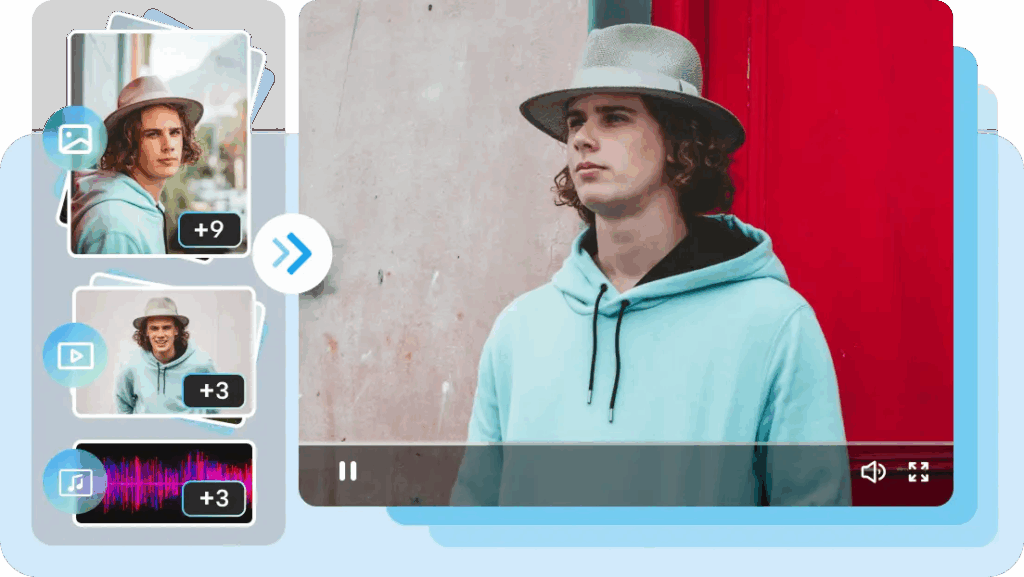
Here’s what that looks like in practice. You can feed Seedance up to 12 assets at once:
- Up to 9 reference images (for style, character, product look)
- Up to 3 video clips totalling ≤15 seconds (for camera moves and motion)
- Up to 3 audio files totalling ≤15 seconds (for rhythm, mood, or dialogue)
Then you write a prompt that explicitly names those assets — @Image1, @Video1, @Audio1 — and the model uses them as hard references, not soft inspiration.
The output? Clips of 4 to 15 seconds at up to 1080p (or 2K on select platforms) with native audio-video sync built in.
What genuinely impressed me in testing: character and object consistency across cuts. The same face, the same product, the same outfit — across multiple shots in one generation. That’s the thing that usually breaks in AI video. Here it mostly holds.
Other highlights from real use:
- Lip-synced dialogue in multiple languages, tied to your audio reference
- “Keep shooting” extension — extend an existing clip instead of starting from scratch
- Multi-shot narrative flow — it understands scene progression, not just a single moment
Core Capabilities: Multi-Ref Control, Camera Language, Style Lock
Multi-Ref Control
This is the engine behind everything. The @filename syntax lets you stack references in a single prompt. A real example from the WaveSpeedAI guide:
“Man @Image1 comes home tired… Reference @Video1 for camera movements… Use @Audio1 for background music rhythm.”
Each asset plays a specific role. Images anchor the visual. Video clips anchor the motion. Audio anchors the pacing. Mix all three and you’ve effectively pre-visualized your shot before the model generates a single frame.
Camera Language
This one caught me off guard. Upload a short clip — even a rough phone video of a camera move you like — and Seedance will replicate that technique. Tracking shot, dolly push, orbit, whip pan. It reads the motion language from your reference clip and applies it to the new scene.
For architects presenting a spatial walkthrough, or product designers showing a 360° reveal — this kind of camera precision is genuinely useful.
Style Lock
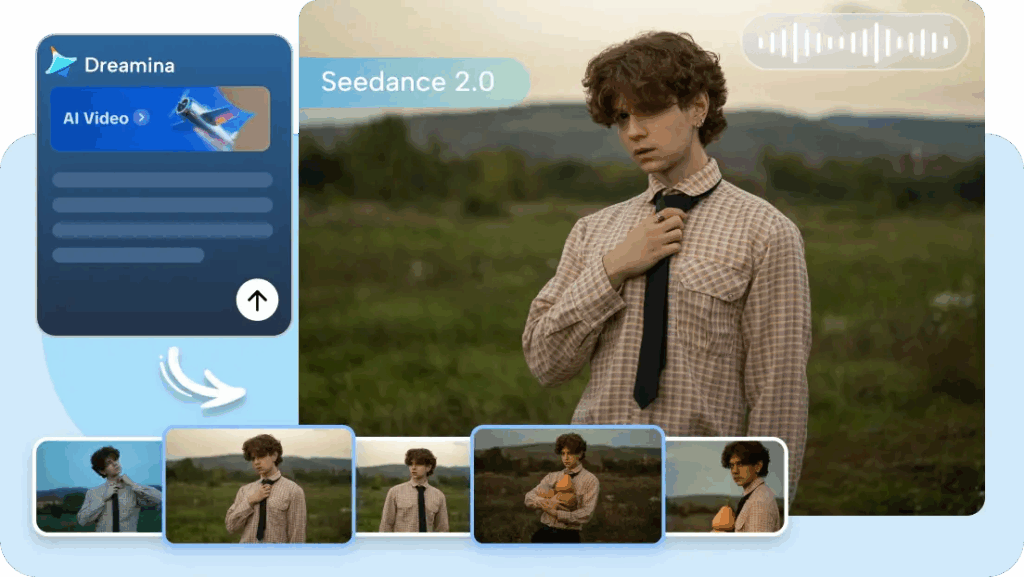
Image references don’t just influence the mood. They lock it. Character faces, outfit details, product proportions, color palette, composition style — all held consistent across frames and cuts.
The practical upside: if you’re producing branded content or a product demo, your visual identity doesn’t drift between shots. That’s been the hardest thing to control in AI video, and Seedance handles it better than anything I’ve tested at this price range.
Where It Outperforms Text-Only Generators
Pure text-to-video tools struggle because language is ambiguous for precise visuals. “Dramatic lighting” means twelve different things. “Walking confidently” generates ten different body types.
Seedance’s reference system sidesteps that ambiguity. You’re not describing the look — you’re showing it. The result is better physics, more accurate character fidelity, sharper camera work, and an overall polish that feels production-ready rather than “AI-assisted.”
The framing that keeps coming up in reviews is accurate: it feels less like prompting and more like directing with a reference board.
Honest Limits — What Seedance 2.0 Still Struggles With
I’d rather tell you the friction now than let you find out mid-deadline.
Short clips only. 4 to 15 seconds per generation. That’s the hard ceiling. Longer pieces require multiple generations stitched together — and the seams can show if your transitions aren’t tight. It’s a shot machine, not a timeline editor. Plan your workflow accordingly.
Complex scenes need multiple tries. Intricate multi-character interactions, precise action timing, subtle emotional intent — these can drift or misread even with solid references. Budget time for iteration on anything with more than one character doing more than one thing.
Text rendering is still broken. Signs, subtitles, logos, on-screen labels — expect garbled results. This isn’t a Seedance-specific problem; it’s an industry-wide limitation in 2026. If legible text in frame is critical, add it in post.
Generation time isn’t instant. Roughly 60–180+ seconds per clip at HD. Longer for 2K or complex multi-reference setups. Fast enough for iterative workflows, but don’t expect real-time feedback.
Input caps exist. Video and audio references are capped at 15 seconds total each. Plan your reference clips to fit.
Face and identity drift can creep in on very long or complex multi-shot sequences. Not the norm, but worth watching for in detailed character work.
Access is still gated. As of early 2026, Seedance 2.0 is in limited beta. Ethical and privacy restrictions around real human faces apply — same concerns as any advanced video model. Deepfake considerations are real, and the platforms take them seriously.
Bottom line: it’s strong for short, controlled cinematic or marketing clips. For anything longer or more complex, expect post-work.
Where PromeAI Fits — Design Assets → Video-Ready Inputs
Seedance is only as good as the references you feed it.
A blurry reference image gives you a blurry style lock. An inconsistent character sheet gives you inconsistent shots. The model follows what you give it — which means the quality of your inputs directly determines the quality of your output.
This is exactly where PromeAI earns its place in the workflow.

PromeAI specializes in design-oriented image generation and editing. It’s not a general-purpose tool. It’s built for the kind of precise, controllable, high-fidelity image creation that produces video-ready reference assets — the exact inputs Seedance needs to perform at its best.
The features worth knowing:
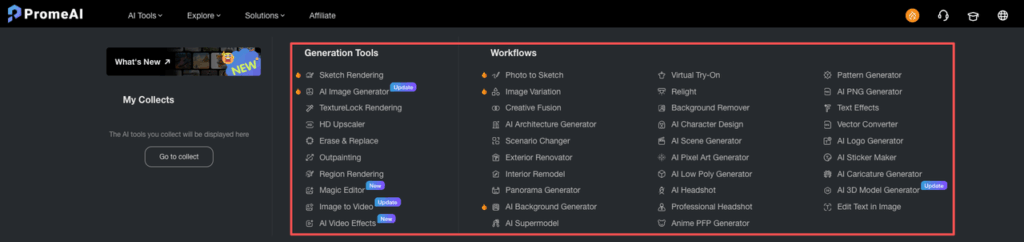
- Sketch Rendering — Upload a rough sketch, a 3D screenshot, or a concept drawing and get a photo-realistic render back. Architects using SketchUp or Rhino, this is for you. Quick, clean, and requires no artistic skill to get a polished output.
- Consistency Models — Train on a single image (or a few) and generate a series of variations that all look like the same character or product. This is your character sheet generator. Feed those consistent outputs into Seedance and the style lock becomes airtight.
- Relight — Adjust the lighting atmosphere after the image is generated. Chiaroscuro, rim light, volumetric god rays, soft fill — all controllable. Getting the lighting right in your reference image means Seedance reproduces that mood in the video.
- Supporting tools — Image variation, outpainting, background generation/removal, upscaling. All useful for producing clean, high-resolution references optimized for video generation.
There’s no direct built-in integration between PromeAI and Seedance. But the asset-to-reference pipeline is straightforward: design in PromeAI, export, upload to Seedance as @Image references. Simple. Effective.
Scene Composition + Lighting Setup in PromeAI
Here’s the practical flow for getting a great reference image out of PromeAI:
Start with a base. A rough sketch, a photo, or a text prompt plus a reference image. Even a quick pen-on-paper sketch works with Sketch Rendering.
Set your lighting intention. Use specific prompts like "dramatic side lighting", "volumetric god rays from upper left", or "warm rim light from behind" rather than vague descriptors like "nice lighting". PromeAI’s Relight feature also lets you adjust after generation — so you can generate first, then dial in the mood.
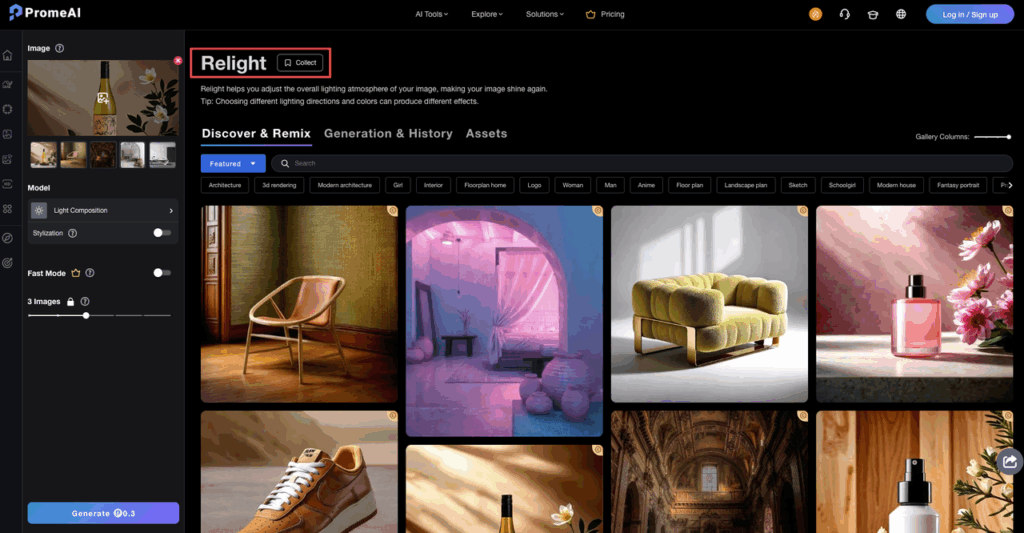
Control your composition. Use perspective toggles, layout controls, and PromeAI’s style library to get the framing and depth you want. Region rendering lets you adjust specific parts of the scene without regenerating everything.
Generate variations, then curate. Run five to ten variations quickly, pick the two or three that feel most consistent, then refine with erase/replace if needed.
What you end up with: professional-grade stills with controlled lighting, accurate depth, and precise composition — exactly the kind of @Image reference that makes Seedance’s style lock perform at its best.
The full pipeline looks like this:
- Design characters, scenes, and lighting in PromeAI (or train Consistency Models for character series)
- Export at the highest available resolution
- Upload to Seedance as
@Imagereferences - Add motion/camera references (
@Video) and audio references (@Audio) as needed - Write a prompt with explicit
@filenamecalls - Generate — iterate as needed
PromeAI has its own image-to-video tools, but pairing it with Seedance’s multimodal reference system gives you a meaningfully stronger result for cinematic or production-quality output.
Ready to test this pipeline? You can start generating video-ready reference assets with PromeAI for free today. See the difference high-fidelity inputs make in your next Seedance project.
FAQ — Pricing, Access, Resolution, Generation Time
How much does Seedance 2.0 cost?
It varies significantly by platform — there’s no single official pricing standard yet. Most hosts use credit-based systems or monthly subscriptions. Rough ranges as of early 2026:
- Subscription tiers: approximately $9–$249/month depending on credit volume (e.g., Higgsfield)
- Per-clip pricing: roughly $0.10–$0.80 per short clip depending on resolution, duration, and features
- API pricing is expected to be competitive, potentially lower per-second than Western alternatives
Free trials and starter credits are common. Worth testing before committing to a plan. Check your specific platform for current rates — pricing is still evolving as access expands.
Where can I actually access it?
As of early 2026, options include:
- ByteDance’s own platforms: Jimeng, Dreamina (within the CapCut ecosystem)
- Third-party hosts: Higgsfield.ai, Atlas Cloud, ChatArt
- API access: expected to open on select providers around mid-to-late February 2026
Join waitlists now. Early access slots are limited and filling up.
What resolution does it output?
1080p is standard across most platforms. 2K is available on some configurations. Higher resolution means longer generation times and higher credit costs.
How long does it take to generate a clip?
Roughly 60–180 seconds for a 5–10 second HD clip on optimized platforms. Longer for 2K output, complex multi-reference inputs, or audio generation. It’s workable for an iterative creative process — just not real-time.
What are the best resources to go deeper?
- Dreamina Resource: how to use Seedance 2.0 — detailed steps and features.
- WaveSpeedAI Complete Guide — excellent prompt examples and usage walkthroughs.
- PromeAI official site — tools, especially Sketch Rendering, Consistency Models, and Relight.
- ByteDance Seed models overview — official model documentation.
Verify specs and pricing directly on platform docs — the model is new and specs are updating fast.
The combination of Seedance 2.0’s reference-driven video engine and PromeAI’s precision image tooling is, right now, one of the cleanest pipelines I’ve found for short-form cinematic AI video. Especially if you’re coming from a design or architecture background and care about exactly what things look like, not just approximately.
Where do you usually hit a wall in your current video workflow — references, consistency, or something else entirely?
Millie is an AI Explorer writing about tools that are worth your actual time. She tests before she types.
Recommeneded Reads
Leave a Reply