Stop trying to re-generate your way out of a bad frame. It’s a waste of time. The real power of AI video isn’t just in creation, but in knowing how to edit Seedance 2.0 videos to fix specific issues like a warped logo or a short clip. Through my recent tests with product launches and arch-viz, I found that treating Seedance like a picky assistant—rather than a magic button—yields incredible results.
I’m Millie, and I’m going to show you why your detailed modeling workflow is safe here. Let’s dive into the three toughest editing jobs and the specific constraints that solve them.
3 editing jobs creators need most
If you’re a designer, you’re usually not asking for “a new video.” You’re asking for surgical edits that keep everything else intact.
Here are the three jobs we keep running into, and the ones Seedance 2.0 is surprisingly good at if we treat it like a picky assistant:
- Extend a clip (add 1–4 seconds) without the style drifting. Use case: a product hero shot needs extra time for on-screen text, or a camera move ends too soon.
- Replace an element (subject/background) without wrecking the rest. Use case: swap a bottle label, change a UI screen, replace a skyline behind a building render.
- Repair a tiny segment (1–2 seconds) that glitches: bad hands, warped logo, mushy text, flicker. Use case: the clip is perfect except for one “what is that?” moment.
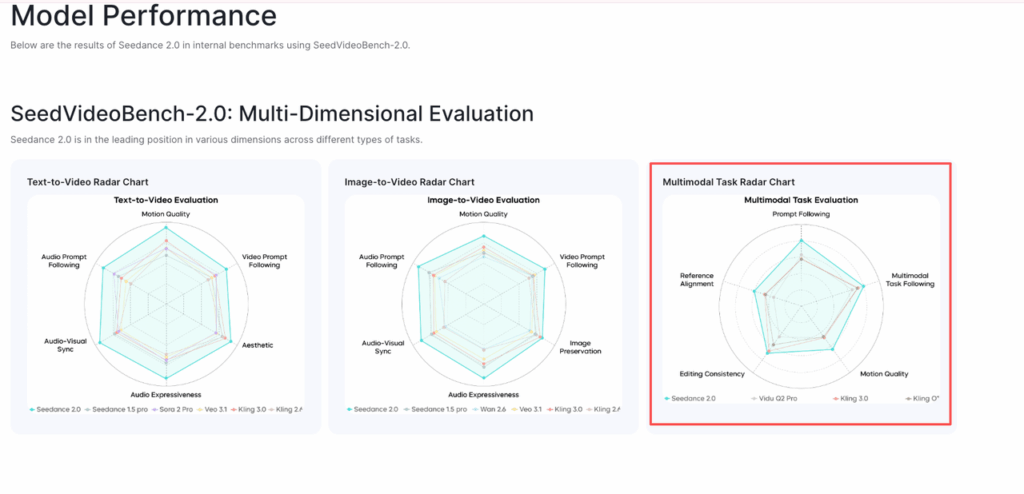
According to ByteDance’s official Seedance 2.0 page, the model is built around real-world physics fidelity — which is exactly why these surgical editing workflows are possible.
The big mindset shift: we don’t prompt for vibes. We prompt for continuity. Think of prompting like seasoning — you’re not changing the dish, you’re matching the existing flavor.
How to extend a clip without changing the style
Extending is where most tools get sloppy. The last frame looks right… then the “new” frames suddenly get smoother, sharper, or just different. For brand work, that’s a dealbreaker.
As Forbes reported in their analysis of Seedance 2.0, the model’s hyper-real output quality makes consistency across extended clips achievable — but only when you prompt it correctly.
What worked best for us: treat the extend like a continuation of camera + lighting + texture, not “generate more.”
Here’s our practical flow:
- Pick your anchor frame (usually the last good frame). We grab 1–2 stills as reference (end frame + a mid-frame) so we can describe what must stay consistent.
- Describe motion like a camera operator. Instead of “keep going,” we say what the camera is doing: slow dolly forward, slight parallax, shallow depth of field.
- Lock style by naming materials + lighting. This matters a lot for product shots and architectural renders.
- Extend in small chunks (1–2 seconds) if the clip is precious. Longer extensions tend to drift more.
Continuation prompt recipe
Copy/paste this and swap the brackets.
- Model: Seedance 2.0
- Task: Extend
- Duration: +2.0s (we start here)
- Seed: 137241 (use any fixed seed: we keep one per project)
Prompt (Continuation):
Continue the shot seamlessly from the last frame. Keep the same visual style, lens, grain, and color grade. Camera motion: [slow dolly forward / gentle pan right / locked-off]. Lighting: [soft overcast daylight / warm studio key + subtle fill], keep shadows consistent. Subject: [describe the main subject in 1 sentence], preserve exact shape and textures. Background: [describe background], no new objects. Motion: add only natural micro-movement (subtle fabric sway / tiny reflections), no sudden jumps.
Negative prompt (we always add one):
no style change, no extra objects, no warping, no text artifacts, no oversharpening, no flicker
Tiny pro tip from our tests: if the extension adds “new ideas” (random props, weird highlights), our prompt is usually too vague. We add one line: “Do not introduce new elements: only continue existing motion.”
Also: if you’re extending a marketing clip with typography overlays, we export clean plates first, extend those, then reapply text in After Effects/Premiere. It’s faster than fighting generated text artifacts.
How to replace elements (subject / background) safely
Replacing is the one that can ruin your day. You ask to swap a background, and suddenly the subject’s edges get crunchy, or the lighting stops matching.
Our rule: change one thing at a time and tell Seedance what is not allowed to move.
Here’s the workflow that kept things stable for product + architectural scenes:
- Define the “protected” region (what must stay). We literally write it in the prompt: “Keep the subject unchanged: silhouette, color, reflections.”
- Replace background first, then subject. Background swaps are usually easier. If we do subject swaps first, the background often gets unintentionally reinterpreted.
- Match lighting like a designer, not a poet. We specify direction + softness: “key light from camera-left, soft shadow falloff, no rim light.”
- Add constraints that designers care about: logo legibility (no warping), straight lines stay straight (architectural edges), materials remain believable (glass stays glass).
Our go-to replace prompt skeleton:
- Task: Replace
- Model: Seedance 2.0
- Seed: same as original clip
Prompt (Replace Background):
Replace ONLY the background with: [clean white cyclorama / modern office interior / dusk city skyline]. Keep the subject exactly the same (shape, size, position, color, reflections). Match existing lighting direction and intensity. Preserve camera angle and lens perspective. Keep edges clean: no halos.
Prompt (Replace Subject):
Replace ONLY the subject with: [describe new subject]. Keep the background unchanged. Match scale, contact shadows, and reflections. Maintain the same color grade and grain.
If edges look weird (common issue), we do a second pass — an “edge healing” request:
Refine boundary edges between subject and background. Remove halos and shimmer. Preserve fine details.
Transparency note: we still don’t trust any model to swap tiny text (like a 10pt label) perfectly in one go. For packaging, we often replace the environment in Seedance, then comp the label in post for control.
Repair workflow — fix a bad 1–2 second segment
This is the edit we use the most: the clip is great, then there’s a single second where a hand turns into noodles, a reflection pops, or a logo bends.
Seedance 2.0 shines here if we isolate the damage. The BBC’s coverage of AI video generation advancements highlights how precise inpainting capabilities are becoming central to professional video workflows — and that’s exactly the use case here.
Our repair workflow:
- Clip the problem tightly (we usually grab +0.5s handles on both sides). Don’t feed it 10 seconds when only 1 second is broken.
- Describe the error like a bug report. Example: “Frames 24–40: right hand deforms when lifting the phone.”
- Tell it what “correct” looks like. We describe anatomy/geometry constraints: five fingers, straight edges, logo stays planar.
- Ask for continuity with surrounding frames. This is key. We want it to “fit back in,” not look like a patch.
Repair prompt we keep reusing:
- Task: Clip Repair (1–2 seconds)
- Model: Seedance 2.0
- Seed: 137241 (or match the project seed)
Prompt (Repair):
Repair only the selected segment. Keep the same style, color grade, grain, and motion cadence as the surrounding frames. Fix: [describe the issue precisely]. Constraints: [straight lines remain straight / correct hand anatomy / logo stays flat and readable]. Preserve: [subject identity, wardrobe, materials, lighting direction]. No new objects.
What we do if the fix still “pops”:
- Reduce the repair window (smaller segment).
- Run two lighter repairs instead of one heavy one.
- Add: “Match motion blur and shutter look to adjacent frames.”
And yes, sometimes it takes 2–3 tries. But that’s still faster than rebuilding the whole shot, especially for marketing timelines where “tomorrow morning” is a real deadline.
Quality control checklist before export
We’ve shipped enough “looks fine on my laptop” videos to earn a real checklist. Here’s what we do before anything leaves the building.
Playback checks:
- Watch at 100% scale (no zoom) and then at 200% for edges.
- Scrub frame-by-frame around the edit point (extend/replace/repair). Look for flicker, jitter, or a sudden texture change.
- Check loop continuity if it’s meant to loop (first/last frame match).
Design-specific QC:
- Straight lines: no bending on product edges, UI frames, buildings.
- Logos/text: no warping, no crawl, no “melting.”
- Materials: glass reflections don’t teleport; metal doesn’t turn plastic.
- Lighting continuity: shadow direction stays consistent.
Export sanity checks:
- Re-encode a short sample and watch it on a different device (phone + another monitor).
- If this is client work, keep a simple log: Model / Seed / Prompt / Pass count.
Trust/privacy note: treat uploads like you would any cloud tool. If the footage is sensitive (unreleased product, private interior), we recommend checking your org’s policy and reviewing Seedance 2.0’s official terms and guidelines directly.
One last thing: if you’re reading this as a teammate deciding whether to try it, yes, it’s worth a weekend test. And we want to know: where do you usually get stuck — extend drift, replace edges, or that one cursed second that ruins an otherwise perfect clip?
Integrating AI into a professional pipeline takes trust, so we made it easy to experiment. Start a free trial with PromeAI today and run your own ‘stress test’ on a clip that needs a complex repair.
Seedance 2.0 Extend / Replace / Clip Repair FAQs
How do I extend a clip in Seedance 2.0 without style drift?
Treat the extend as continuity, not “generate more.” Use an anchor frame, describe camera motion (dolly/pan), and lock materials + lighting (lens, grain, color grade). Extend in small 1–2 second chunks and add a negative prompt like “no style change, no extra objects, no flicker.”
What’s the best Seedance 2.0 prompt for extending a clip by 2 seconds?
Use a fixed seed, then prompt: “Continue seamlessly from the last frame; keep the same lens, grain, and color grade. Camera motion: [x]. Lighting: [x]. Preserve subject shape/textures; background unchanged; no new objects; only natural micro-movement.” Add negatives: “no warping, no text artifacts, no oversharpening.”
How can Seedance 2.0 replace a background without ruining edges or lighting?
Change one thing at a time and declare what’s “protected.” For a background swap: “Replace ONLY the background with [x]. Keep the subject exactly the same (shape, position, reflections). Match existing lighting direction/intensity; preserve lens perspective; keep edges clean—no halos.” Do an edge-refine pass if shimmer appears.
Can Seedance 2.0 replace a subject or logo text perfectly in one pass?
Subject replacement can work well when you preserve scale, contact shadows, reflections, and the original grade/grain. Tiny text (like small packaging labels) is still risky. Per ByteDance’s own Seedance 2.0 documentation, a reliable approach is to replace the environment in Seedance 2.0, then composite crisp labels/text in After Effects or Premiere.
How do you use Seedance 2.0 clip repair to fix a 1–2 second glitch?
Isolate the problem tightly (include ~0.5s handles), then describe the issue like a bug report (exact frames, what breaks). Add constraints (straight lines stay straight, correct hand anatomy, logo stays planar/readable) and request continuity with surrounding frames. If it “pops,” shrink the window or do two lighter repair passes.
Recommended Reads
Leave a Reply