Last Thursday night, 14 hours before a major campaign delivery, my entire AI video pipeline broke down. I was knee-deep in a Vidu Q3 troubleshooting nightmare: my Vidu Q3 prompt was not followed, my main character had three arms, and the audio sync was entirely off. Sound familiar?
I’m Millie, an AI video strategist, and after losing too many hours to trial and error, I stopped guessing and started logging every failure. Today, I’m sharing the exact step-by-step fix checklist that saved my project that night. Whether you are battling severe Vidu Q3 flicker or weird, uncontrollable motion, these aren’t theoretical tips—these are the hard-earned, copy-paste parameter adjustments I use daily to force the model back into submission. Let’s fix your broken renders.
2-minute triage (prompt vs settings vs account/credits)

We start with one question: is it the prompt, the settings, or the account?
Here’s the fastest way we separate those in under 2 minutes:
- Step 1 (30 seconds): Run a “known good” test prompt you’ve used before. Don’t improvise.
- If the test prompt looks good → your new prompt/settings are the culprit.
- If the test prompt is also broken → it’s probably mode/settings/account/traffic.
- Step 2 (30 seconds): Check credits + queue behavior
- If it errors, stalls, or completes instantly with garbage, that can be credits, rate limits, or a temporary service issue.
- If you’re seeing inconsistent results between identical runs, assume load variance and move to a regen strategy (we cover that below).
- Step 3 (60 seconds): Lock variables
- Keep Model the same.
- Keep Duration / FPS / aspect ratio the same.
- Change one thing at a time.
Fixes for “prompt ignored”
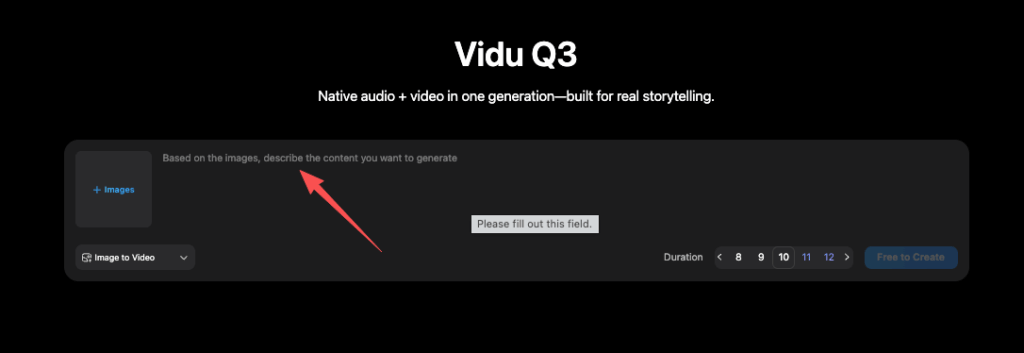
This one is usually self-inflicted (sorry). We’ve seen “prompt ignored” happen for three main reasons: the prompt is too broad, the negative prompt is fighting the positive prompt, or the input/reference is overpowering.
Try these in order:
- Shrink the prompt to one subject + one action + one style.
- Example structure: “Subject doing Action in Setting, Style, Camera note.”
- Put critical details first. Models tend to respect the early tokens more.
- Remove contradictions. If we write “photoreal” and then “anime shading” and then “ultra-real skin pores,” we’re basically asking for a compromise.
- Temporarily delete your negative prompt and rerun once.
- If it suddenly follows the prompt again, your negative prompt is over-restricting.
- If you’re using a reference image/video:
- Reduce how much the reference dominates (if there’s a reference strength / adherence slider in your workflow).
- Or switch to a mode better suited for references (more on this in the mode section).
If you want a clean baseline, here’s a “boring but reliable” test prompt we keep around:
- Prompt: “A single product shot of a matte black water bottle on a white seamless background, slow 3-second turntable rotation, soft studio lighting, no text, no logo.”
If even that goes weird, it’s probably not your prompt.
Fixes for flicker/warp/face/hands
Flicker and warping are the fastest way to make a marketing team say, “Cool demo… but we can’t ship this.”
What we do:
- Don’t ask for too many scene cuts in one generation.
- One scene, one camera move. That’s it.
- Dial back motion. Fast moves amplify distortion.
- If the tool offers motion intensity, start lower.
- Avoid “crowds” and “busy hands” unless you’re in a mode that’s good at continuity.
For faces and hands specifically:
- Keep the subject farther from camera (mid-shot instead of close-up) on the first pass.
- Describe hands simply.
- Instead of “intricate finger articulation,” say “hands resting on the table” or “holding a mug with both hands.”
- Use a reference image if the identity must stay consistent.
A practical designer trick: generate a clean version without hands (crop or composition), then regenerate once you’ve nailed the look, and only then attempt the “hands-in-frame” variant.
Fixes for audio noise/off-sync
Audio issues usually fall into: noisy generation, timing drift, or mismatched expectations (we think it will lip-sync perfectly when it’s really more “vibe sync”).
Try this:
- Keep audio short and simple first.
- Short clip → easier alignment.
- Reduce competing motion in the visual.
- Big camera moves + fast cuts make sync feel worse.
- Use cleaner source audio (if you’re uploading audio).
- No background music, minimal reverb, no double voices.
Also, be realistic about what you’re asking for. If we need precise lip-sync for a talking-head ad, we usually:
- generate visuals with minimal mouth detail, or
- switch workflows and do lip-sync in a dedicated tool after.
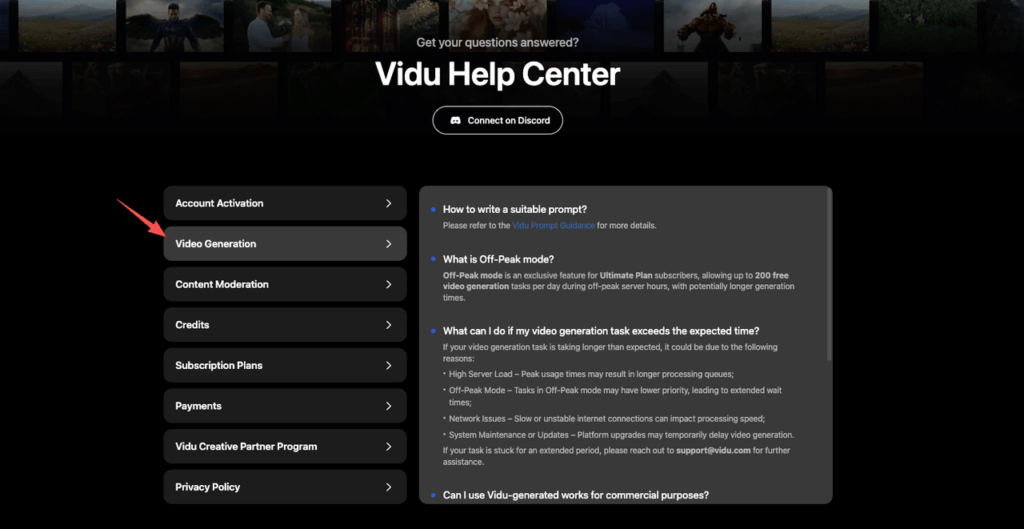
For official feature expectations and current limitations, we check the Vidu Help Center so we’re not chasing a setting that doesn’t exist in the current build.
Regeneration strategy (small deltas, not rewrites)
When Vidu Q3 isn’t behaving, our instinct is to rewrite the whole prompt. That’s usually how we lose the plot.
Our rule: regen with small deltas.
Here’s the loop we use (and it keeps us sane):
- Freeze 80% of the prompt. Keep the core subject + style.
- Change one variable per run:
- Add one camera note (“static tripod shot”)
- Or one lighting note (“soft key light from left”)
- Or one motion note (“slow push-in”)
We also keep a mini log (literally a Notes app list):
- Model: (whatever Q3 variant you’re using)
- Prompt v1 / v2 / v3 (copy-paste)
- What changed: one line
- Result: “followed prompt,” “face drift,” “flicker worse,” etc.
If the tool supports it, we’ll also lock repeatability settings:
- Seed: keep it fixed for A/B tests, then unlock once we like the direction
Why this works: prompting is like seasoning. If we dump five new spices in at once, we won’t know what ruined the soup.
One more thing we’ve noticed under deadline pressure: regeneration often looks “worse” when we keep panic-editing. But if we do 3–5 disciplined small-delta runs, we usually land a usable take faster than the “rewrite everything” approach.
When to switch modes (T2V ↔ I2V ↔ reference)
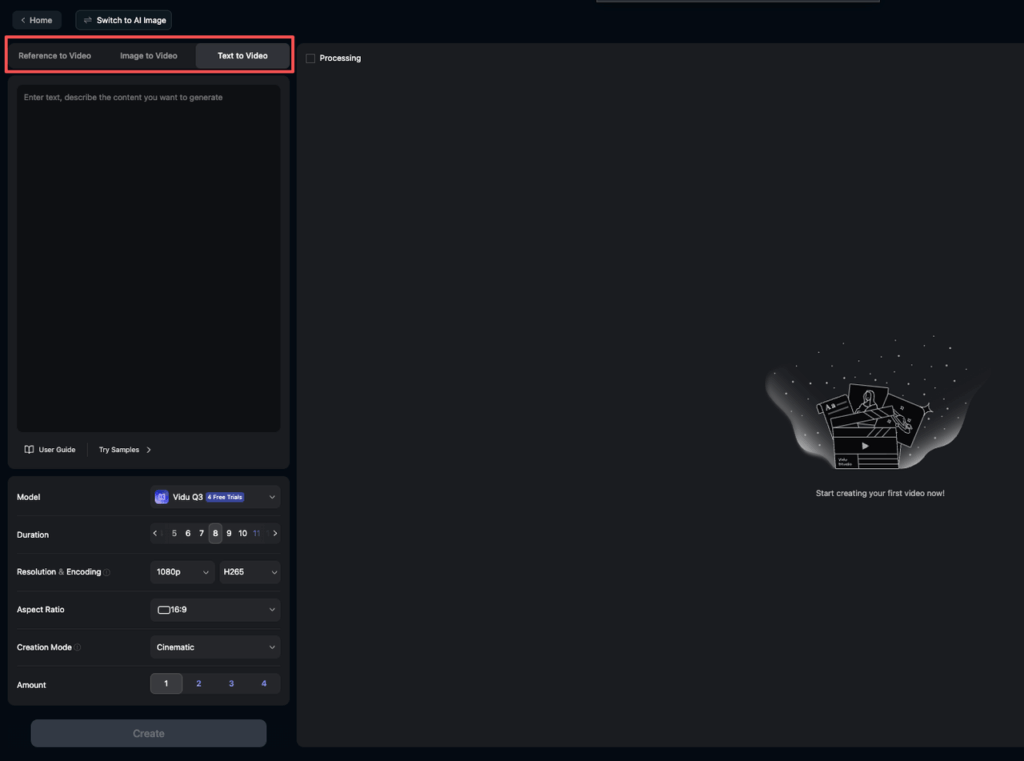
A lot of Vidu Q3 not working complaints are really: “We picked the wrong mode for the job.”
Here’s how we decide, in plain terms.
- T2V (Text-to-Video) is best when:
- we’re exploring a vibe,
- identity doesn’t have to match an existing person/product,
- we can accept variation.
- I2V (Image-to-Video) is best when:
- we already have the exact composition we want (product render, key visual, frame from Figma/Photoshop),
- we need continuity,
- we want subtle motion (parallax, slow camera move, gentle animation).
- Reference mode / reference inputs are best when:
- the character/product must stay recognizable across attempts,
- brand style needs consistency (same face, same mascot, same design language).
Switch modes when you see these symptoms:
- Prompt feels ignored in T2V → move to I2V with a strong starting frame.
- Identity keeps drifting → use reference (or strengthen the reference behavior).
- You’re getting flicker from “too much happening” → start with I2V and ask for simpler motion.
Designer example we actually use:
- If we’re making a product teaser: we’ll mock one hero frame first (clean lighting, correct proportions), then run I2V for a slow 3–4 second motion.
- If we’re brainstorming campaign directions: we’ll do T2V in batches, accept chaos, then “promote” the best frame into I2V for polish.
Mode choice is less about being fancy and more about reducing variables. The fewer things the model has to invent at once, the fewer weird surprises we get.
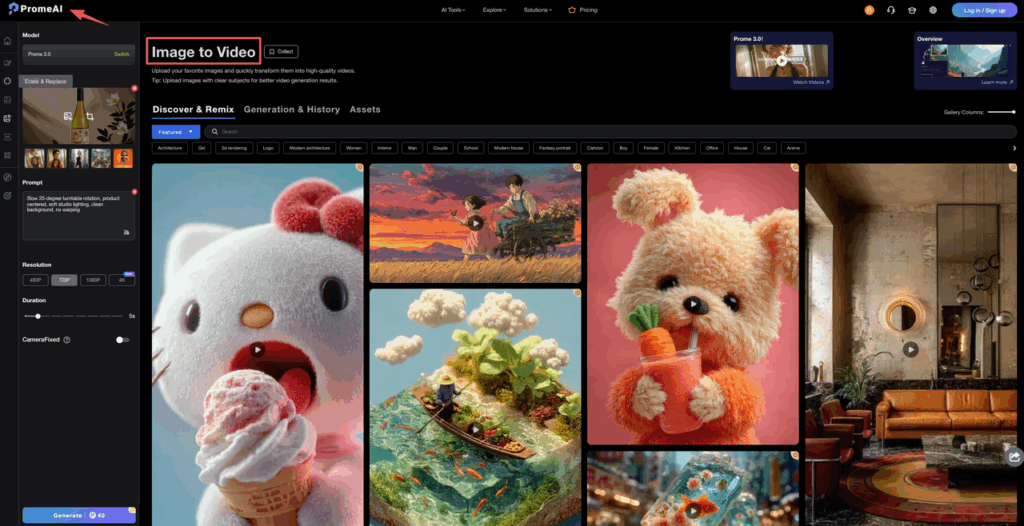
Still struggling with extra limbs or severe flickering in your current renders? Bring your most stubborn prompt to PromeAI. Test our robust Image-to-Video workflow and let us know if our default settings help stabilize your output.
Support-ready info to collect (EEAT: reproducibility)
If we’re going to ask support for help, we make it easy for them to reproduce. Otherwise we get the classic back-and-forth: “Can you share more details?”
Here’s the support packet we send (copy this):
- Date/time + timezone of the generation
- Project/workspace name (if applicable)
- Mode: T2V / I2V / reference
- Model: the exact Q3 model name shown in the UI
- Prompt: full text
- Negative prompt: full text (if used)
- Seed: include it if visible (huge for reproducibility)
- Settings: duration, aspect ratio, fps, motion strength, reference strength, anything you touched
- Inputs: uploaded image/video filename(s), source audio filename(s)
- Output ID / job ID (if the app shows one)
- What went wrong (one sentence): “Prompt ignored, kept generating a different subject,” “flicker every 6–10 frames,” “audio drifts after 2 seconds,” etc.
- What you already tried: 2–3 bullets (so they don’t suggest the same steps)
Trust note (because we’re all professionals here): if the prompt or inputs contain sensitive client info, we anonymize before sending. Swap brand names for placeholders, blur private images, and avoid uploading anything you don’t have rights to use.
For where to file issues and what fields they request, we reference the official Vidu Help Center first, since that’s the most likely place their current support flow is documented.
Before we go, what’s the most annoying failure mode you’re getting right now: prompt ignored, flicker/warp, or audio? If you tell us your exact mode (T2V/I2V/reference) and the one-line prompt, we can suggest the smallest change to try next.
Frequently Asked Questions
Why is Vidu Q3 not working even though the job says it completed?
When Vidu Q3 “completes” but the output is unusable, it’s often not a hard failure—it’s a prompt/settings mismatch, mode mismatch, or account/traffic issue. Run a known-good test prompt, check credits/queue behavior, then lock variables (model, duration, FPS, aspect ratio) before changing anything else.
How do I troubleshoot “prompt ignored” in Vidu Q3 not working situations?
Start by shrinking your prompt to one subject, one action, and one style, with critical details first. Remove contradictions and temporarily delete the negative prompt to see if it’s over-restricting. If you’re using reference inputs, reduce reference dominance (or switch modes) so the prompt can steer results again.
What’s the best way to fix flicker, warping, or bad faces/hands in Vidu Q3?
Keep generations simple: one scene and one camera move, with lower motion intensity to reduce distortion. For faces/hands, begin with a mid-shot, describe hands plainly (e.g., “hands resting on the table”), and avoid crowds. Many teams generate a clean version first, then attempt a hands-in-frame variant.
How can I fix noisy or off-sync audio when Vidu Q3 isn‘t working properly?
Use short, simple audio and reduce competing visual motion—fast cuts and big camera moves make sync feel worse. If you upload audio, use clean source files (no background music, minimal reverb). For precise lip-sync, consider generating visuals first and doing lip-sync in a dedicated tool afterward.
When should I switch modes (T2V vs I2V vs reference) if Vidu Q3 is not working?
Switch modes based on the symptom. If prompts feel ignored in T2V, move to I2V with a strong starting frame. If identity drifts, use reference inputs for consistency. If flicker comes from “too much happening,” start with I2V and ask for subtle motion—fewer invented variables usually means fewer surprises.
Leave a Reply